

Hosting an event
Create a community event so others can find it and RSVP.
-
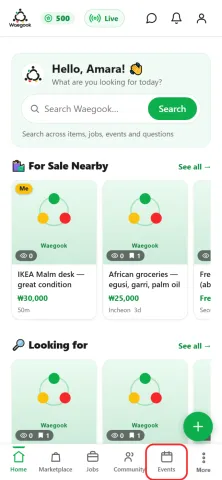
Step 1From the home screen, tap “Events” in the bottom menu.
-
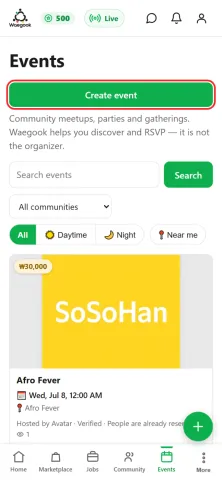
Step 2On the Events page, tap “Create event”. (You need a verified account to host.)
-
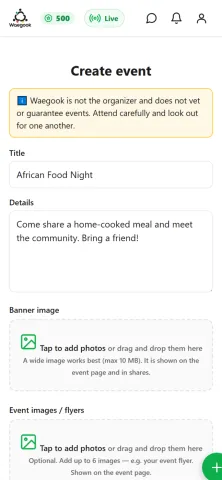
Step 3Give your event a title, a short description, and a banner image.
-
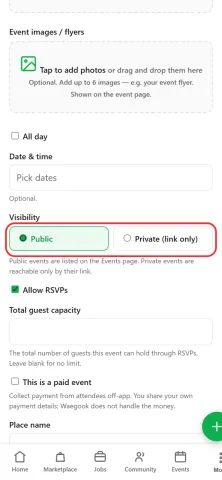
Step 4Set the date and time, then choose who can see it: Public events are listed on the Events page; Private events are only reachable by their link: good for invite-only gatherings.
-
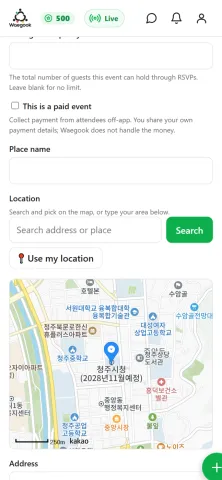
Step 5Add the location: search for a place or drop a pin on the map.
-
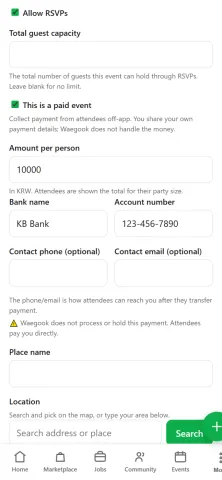
Step 6Charging for tickets? Turn on “This is a paid event” and add the price and your bank details. Waegook doesn’t handle the money: attendees pay you directly.
-
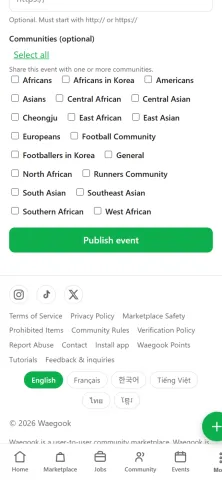
Step 7Add a guest limit if you want, then tap “Publish event”. It goes live for people to RSVP.